
Forward Windows Event Logs to a mobile device with NXLog
When a problem involves logons, account lockouts or a service that keeps stopping, the evidence is in the Windows Event Log. NXLog Community Edition can forward those events as syslog carrying JSON, and MobiObs on a mobile device, a tablet or a laptop shows them as structured events with event ID, channel, provider, computer and every EventData field.
MobiObs is not released yet. It is coming to Google Play first, then the App Store and desktop. Join the launch list to get one email when it is available.
How it fits together
NXLog reads the event log with its im_msvistalog input, converts each event to JSON with xm_json, wraps it in an RFC 5424 syslog header with xm_syslog, and sends it over UDP or TCP to port 5514 on the MobiObs device. MobiObs recognises the JSON automatically and files the event under Windows Events rather than Logs. Nothing needs to be installed on the network, and removing the output block from nxlog.conf undoes the change.
Two other formats are also recognised: Snare (to_syslog_snare(), the tab-delimited MSWinEventLog format) and plain to_syslog_bsd() text, from which the provider and event ID are extracted when present. JSON is preferred because it keeps every field.
NXLog configuration
Install NXLog Community Edition on the Windows host and add the following to C:\Program Files\nxlog\conf\nxlog.conf, keeping the define and path lines that the installer created. Replace 10.20.4.9 with the address shown on the MobiObs Network screen.
nxlog.conf, NXLog Community Edition 3.x (UDP)
<Extension _syslog>
    Module      xm_syslog
</Extension>

<Extension _json>
    Module      xm_json
</Extension>

<Input eventlog>
    Module      im_msvistalog
    <QueryXML>
        <QueryList>
            <Query Id="0">
                <Select Path="Application">*</Select>
                <Select Path="System">*</Select>
                <Select Path="Security">*</Select>
            </Query>
        </QueryList>
    </QueryXML>
</Input>

<Output mobiobs_udp>
    Module      om_udp
    Host        10.20.4.9
    Port        5514
    Exec        $Message = to_json(); to_syslog_ietf();
</Output>

<Route r1>
    Path        eventlog => mobiobs_udp
</Route>
Restart the NXLog service (Restart-Service nxlog in an elevated PowerShell) and the events appear within seconds.
TCP for bursts
A domain controller at the start of a shift, or a host replaying its backlog after NXLog starts, can produce bursts that UDP drops. TCP with octet-counted framing avoids that. Replace the output and route with:
nxlog.conf, TCP output
<Output mobiobs_tcp>
    Module      om_tcp
    Host        10.20.4.9
    Port        5514
    Exec        $Message = to_json(); to_syslog_ietf();
    OutputType  Syslog_TLS
</Output>

<Route r1>
    Path        eventlog => mobiobs_tcp
</Route>
OutputType Syslog_TLS selects octet-counting framing (RFC 5425 style) over a plain TCP connection; it does not enable encryption. MobiObs detects the framing automatically.
Send only the events that matter
Forwarding everything from the Security channel of a busy server is a lot of traffic for a site capture. An XPath query in QueryXML narrows it to the events you are investigating. This example keeps successful and failed logons, account lockouts and Kerberos pre-authentication events, plus errors and warnings from the System log:
im_msvistalog QueryXML filter
<QueryXML>
    <QueryList>
        <Query Id="0">
            <Select Path="Security">*[System[(EventID=4624 or EventID=4625 or EventID=4740 or EventID=4768 or EventID=4771)]]</Select>
            <Select Path="System">*[System[(Level=1 or Level=2 or Level=3)]]</Select>
        </Query>
    </QueryList>
</QueryXML>
4624 and 4625 are successful and failed logons, 4740 is an account lockout, and 4768 and 4771 are Kerberos ticket requests and pre-authentication failures, which are logged only on domain controllers. Test a query in Event Viewer first (Filter Current Log, then the XML tab), because a query with a syntax error returns no events.
What about Windows Event Forwarding?
Native Windows Event Forwarding (WEF) sends events over WinRM to a Windows Event Collector (WEC) server, not over syslog, so a MobiObs device cannot subscribe to it directly. If your estate already forwards to a WEC, install NXLog on the collector and read its ForwardedEvents channel with <Select Path="ForwardedEvents">*</Select>. One NXLog instance then covers every forwarding host. Otherwise, install NXLog on the individual hosts you are investigating.
Reading the events
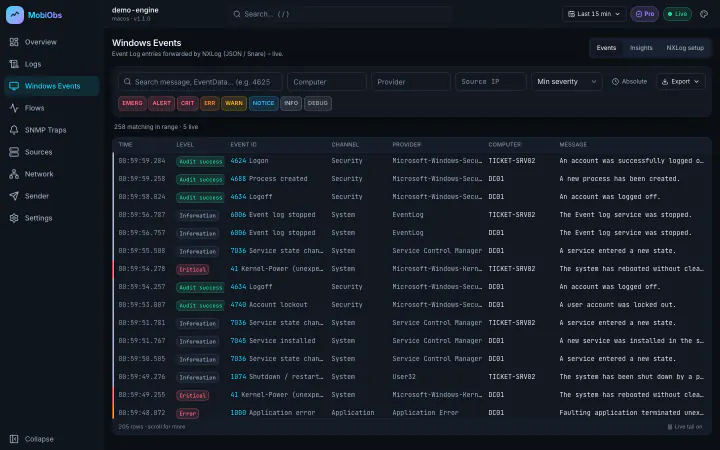
Each event is listed with level, event ID, channel, provider, computer and message, and opening an event shows the full EventData map, such as TargetUserName, IpAddress and LogonType. Filtering to 4625 on one computer and reading the source addresses is often the fastest way to find the device, service or scheduled task that keeps locking an account.
If nothing arrives
- Security channel rights. NXLog must run as a service with rights to read the Security log. The default LocalSystem account has them.
- NXLog's own log. Errors are written to
C:\Program Files\nxlog\data\nxlog.log. A configuration error stops the service from starting. - Firewall and path. Outbound UDP and TCP 5514 are allowed by default on Windows, but a network firewall between the host and the device may not allow them. See the troubleshooting checklist.
- Clock and time zone. MobiObs keeps the timestamp the host sends. If events appear at the wrong time, check the Windows clock and time zone, and whether your NXLog version formats
EventTimewith a UTC offset.